Automate LinkedIn posts with Claude Code or Codex, and approve each one
To automate LinkedIn posts with Claude Code or Codex, give the agent one source of real material each week, a voice file built from your own posts, and a posting route: LinkedIn's API, a scheduler's MCP server, or a signed-in browser. Run it on a schedule, and make it stop for your approval before anything publishes.
- You get
- Three LinkedIn drafts from your real week in your approvals every Monday, published only after you approve the exact text.
- Runs
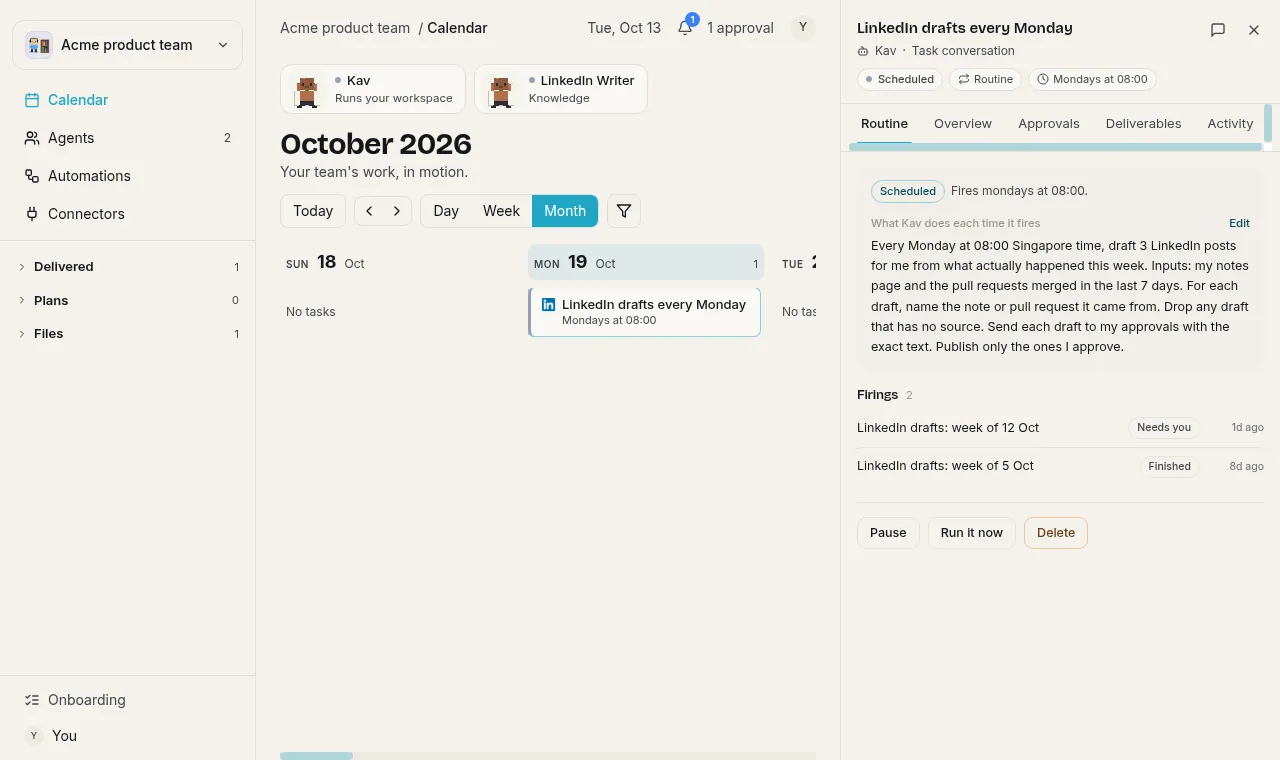
- Every Monday at 08:00 in your time zone
- Connects
- LinkedIn, Notion, GitHub
How does this routine work, step by step?
- On schedule, the agent reads your notes page and the pull requests merged in the last 7 days.
- It reads your voice file and the log of posts already published, so it does not repeat a topic.
- It drafts three posts and names the note or pull request behind each one, dropping any draft with no source.
- You get the drafts as approvals and approve, edit or reject each exact text.
- Approved posts go out from your own LinkedIn account at the times you picked, and the log is updated.
- If LinkedIn signs the agent out, the run stops and asks you to reconnect that day instead of failing quietly.
What runs every Monday
Each box is one step of a run. Select one to see it in the product below.
- RoutineMonday 08:00Your time zone, Mondays onlySee it in the product
- KavThe run opens as a taskIts own line on your calendar, under the routineSee it in the product
- KavKav briefs the writerGoal, what to avoid, exact deliverablesSee it in the product
- WriterDrafts three postsNotes, merged PRs, voice file, your saved guidanceSee it in the product
- Cannot editReviewerChecks before you see itA separate session that checks and judges, max 3 roundsSee it in the product
- Run waitsYouApprove on your phoneOne review card. Nothing posts until you answerSee it in the product
- WriterPublishes approved postsAt your slots, from your signed-in accountSee it in the product
- KavCloses with linksEach published post listed, log updatedSee it in the product
- Reviewer back to Writer: a fail goes back to the same writer with the exact gap, at most three rounds
- You back to Writer: your comment on the card is kept for this writer and this job (step 8)
What you see at each step
Screenshots of the Kavela interface at each step of a run.
- 1. You paste the prompt into Kav
- 2. Kav files it and starts planning
- 3. Kav settles what the routine may publish
- 4. You sign in to LinkedIn once
- 5. The routine sits on your calendar
- 6. Drafted, checked, sent back, checked again
- 7. The approval reaches your phone
- 8. Your comment becomes the writer's rule
- 9. The run finishes with links
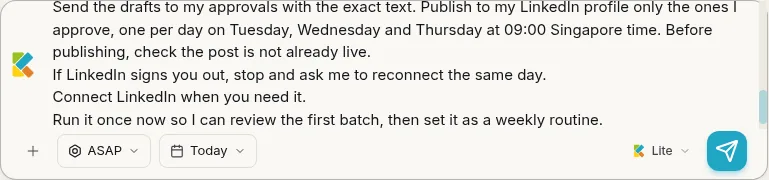
You paste the prompt into Kav
One message in the workspace chat sets the whole job: the day and time, the sources, the voice rules, the approval, and a first run now so you can check the batch.
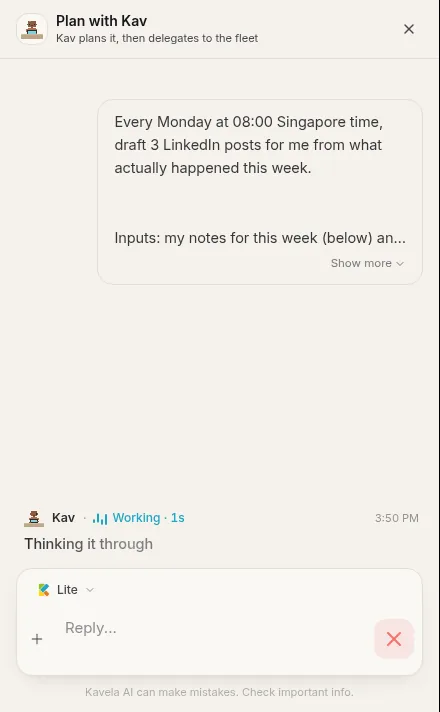
Kav files it and starts planning
Kav puts the ask on the board as a task before it asks you anything, then works out the routine, the worker and the checks.
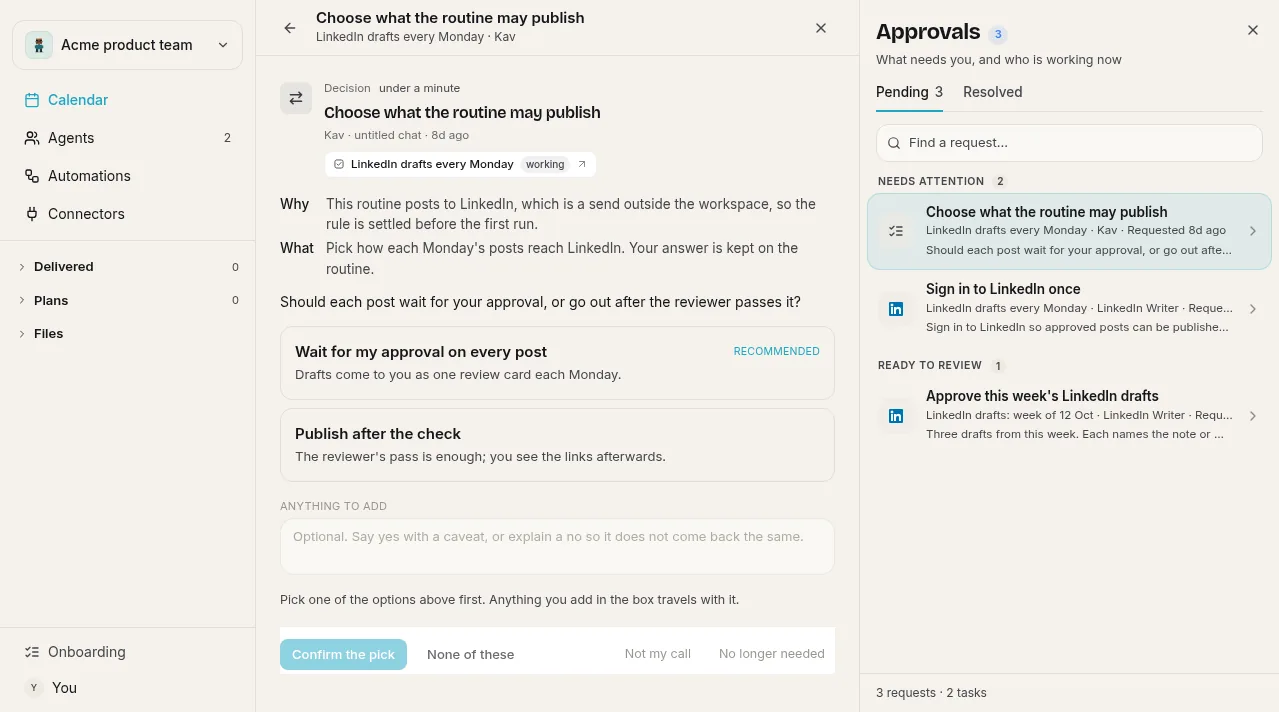
Kav settles what the routine may publish
Publishing to LinkedIn is a send outside the workspace, so Kav asks once, at setup, how posts should go out, and keeps your answer on the routine. The recommended option: every post waits for you.
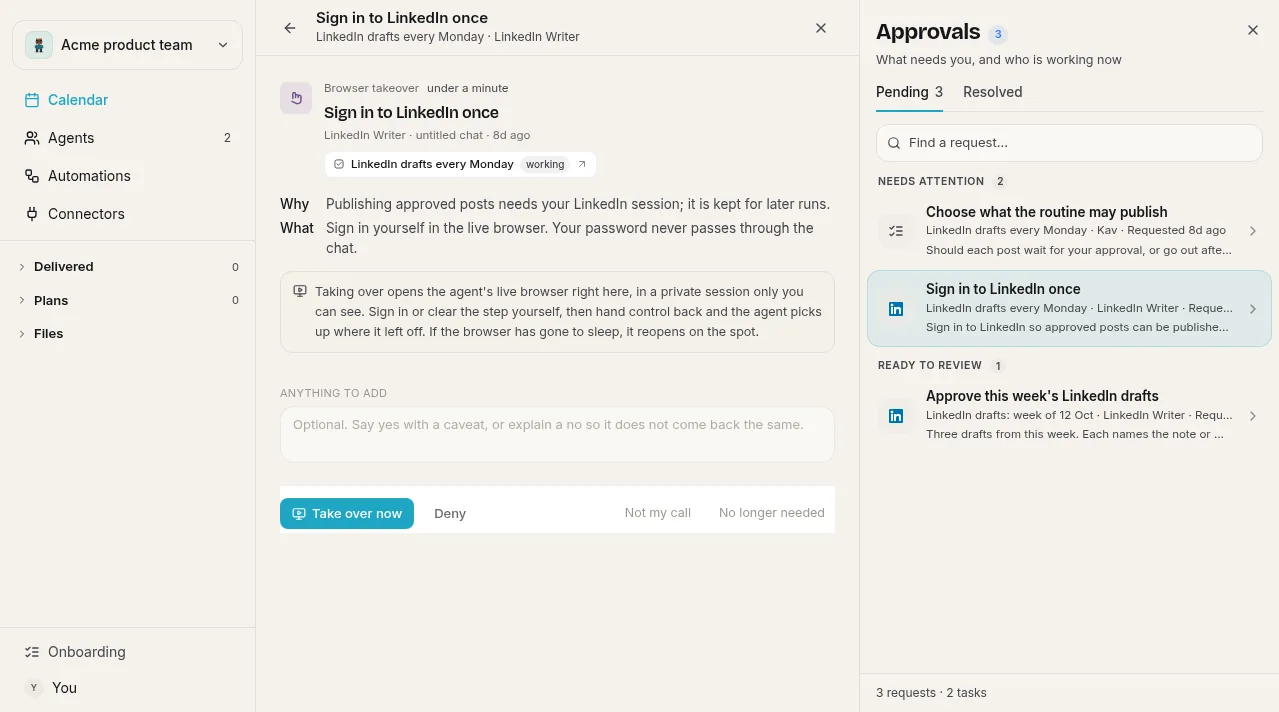
You sign in to LinkedIn once
The worker opens LinkedIn in its own browser and hands it to you at the sign-in page. You sign in yourself, the password never passes through the chat, and the sign-in is kept for later runs.
The routine sits on your calendar
The routine is a task on your calendar with its schedule in your time zone and what Kav does each time it fires. Every Monday becomes its own run underneath it, with its own state.
Drafted, checked, sent back, checked again
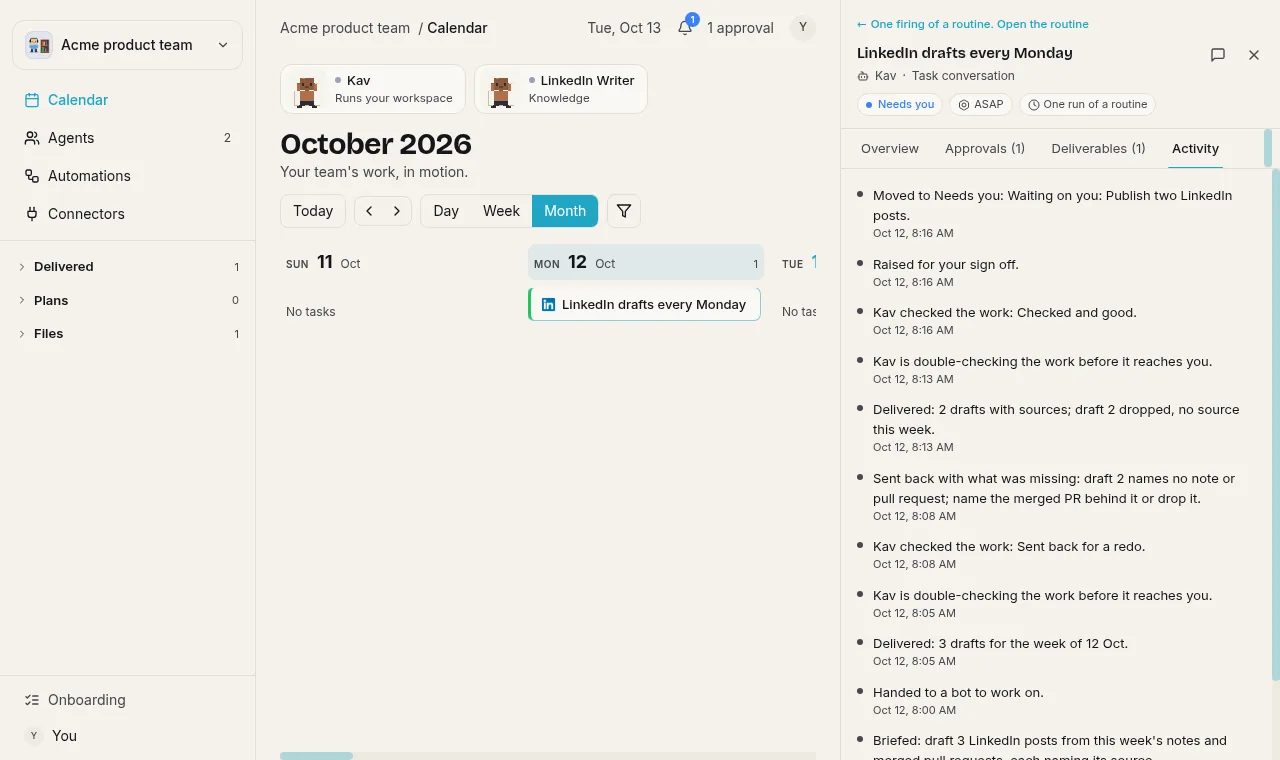
The writer hands back three drafts. A separate reviewer that did not write them checks them first. Draft 2 named no source, so it went back to the same writer with that exact gap, and the second attempt passed. You see none of this until it is good.
The approval reaches your phone
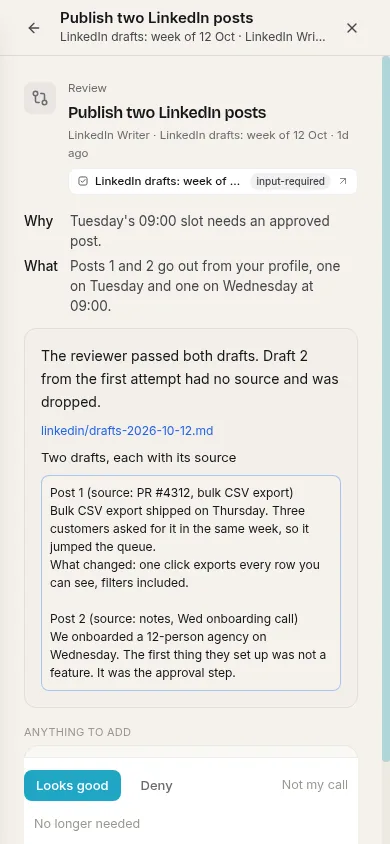
The drafts that passed arrive as one review card titled with what your yes does, with the exact text. The run waits on it: nothing posts until you answer.
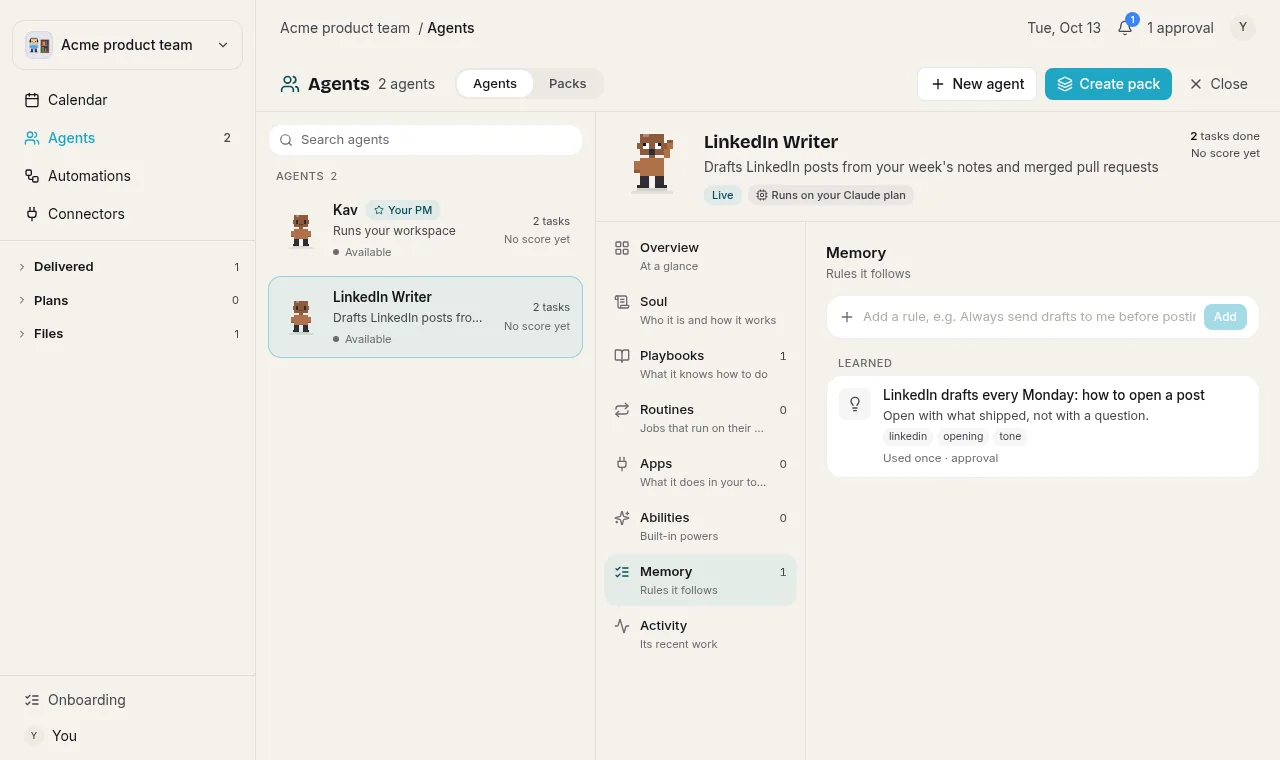
Your comment becomes the writer's rule
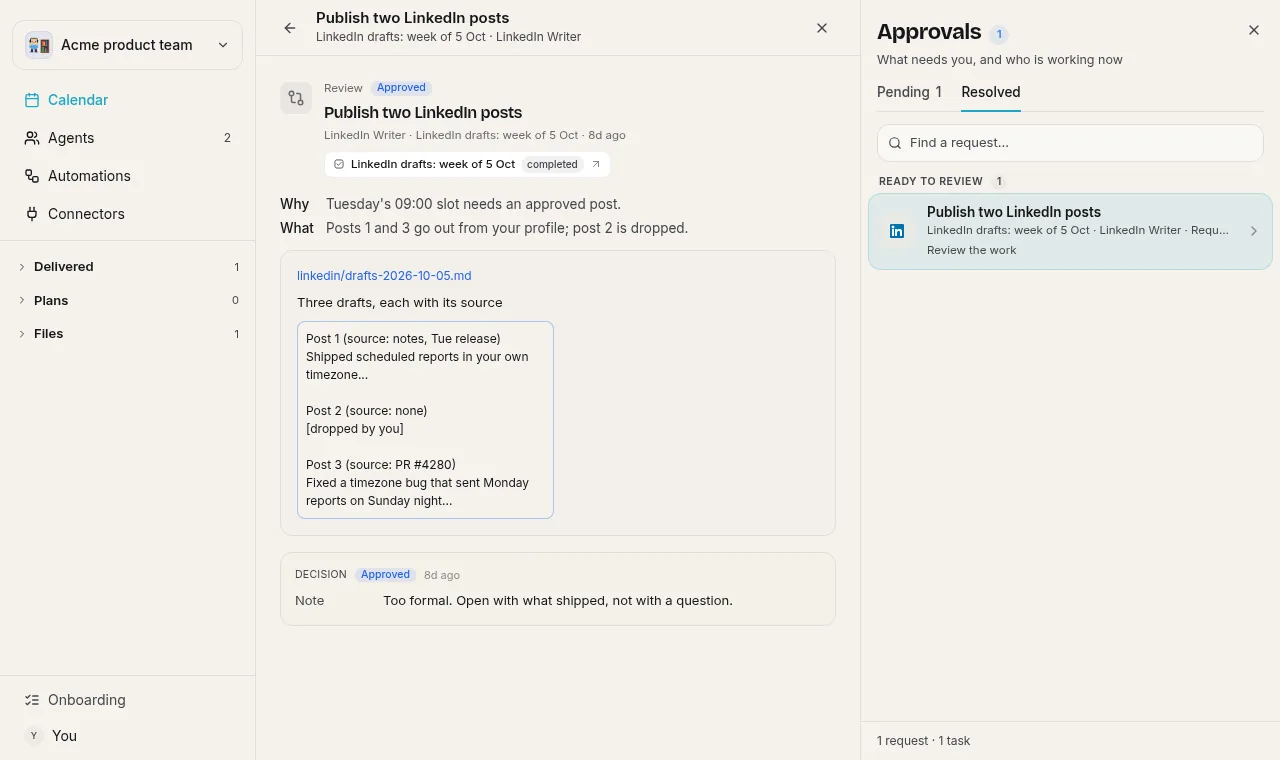
Approve with a comment and it is kept as guidance for this writer and this job only. It shows on the writer's Memory with where it came from, and loads before the next drafts.
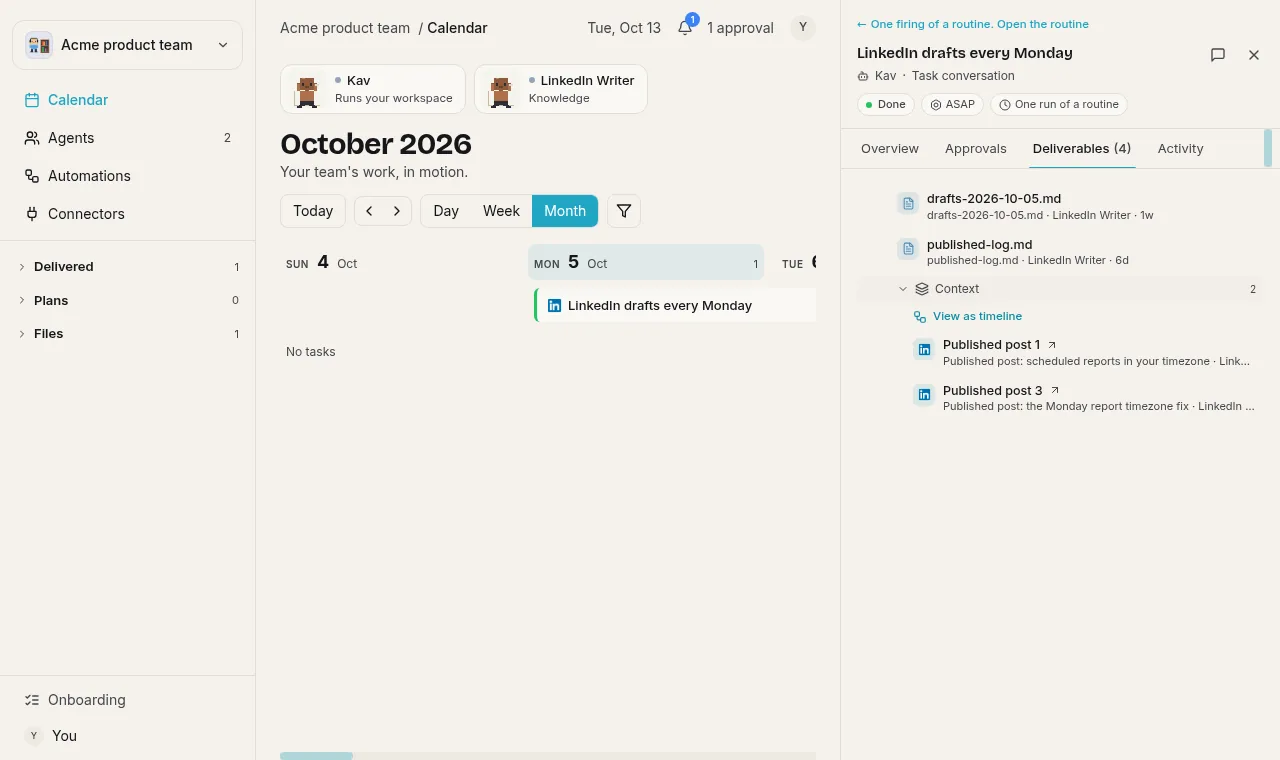
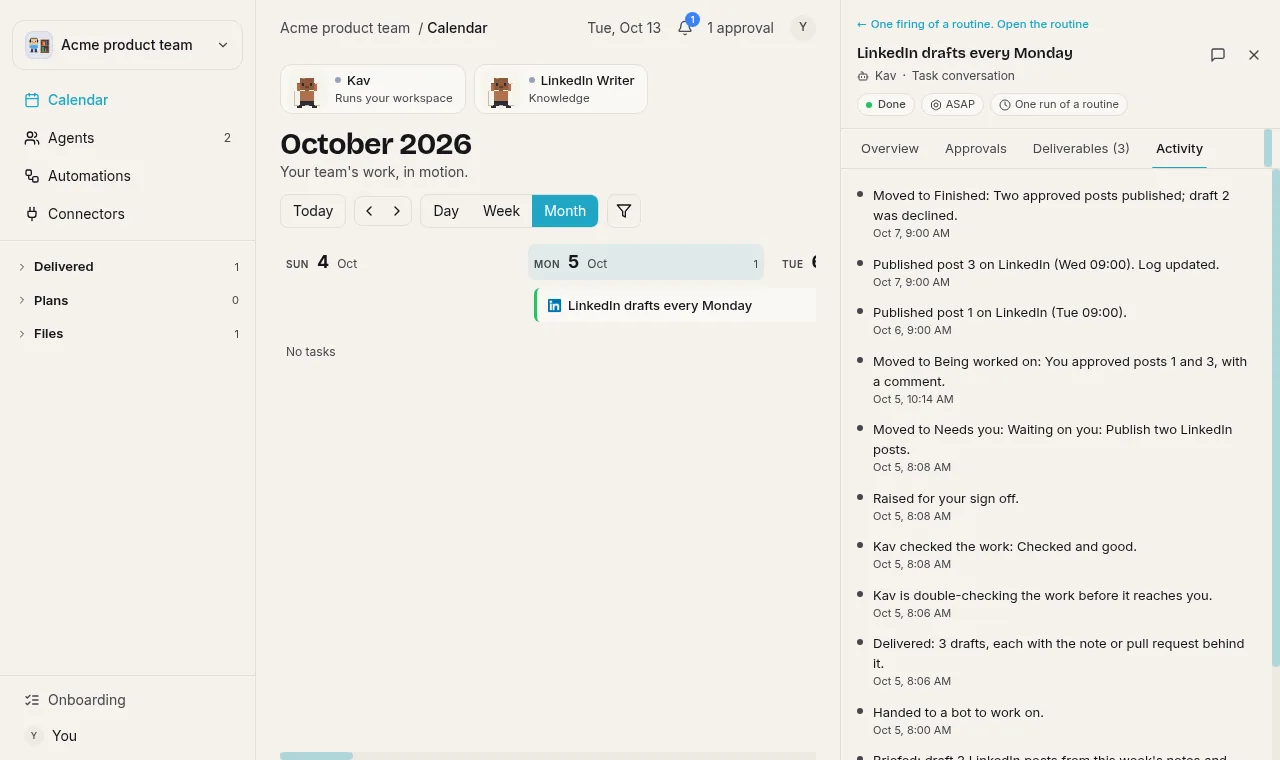
The run finishes with links
Approved posts go out at your slots from your signed-in account. The run closes with the drafts file, the published log and a link to each published post.
One run, line by line
The same run, three ways it can go. Times are examples.
- Mon 08:00RoutineThis Monday's run starts and opens as its own task under the routine.
- Mon 08:00KavBriefs the writer: three drafts, each naming its note or merged pull request, no hashtags, nothing published yet.
- Mon 08:02WriterLoads saved guidance for this job, then reads the notes page, last week's merged pull requests, the voice file and the published log.
- Mon 08:09WriterReports done: three drafts attached, each with its source.
- Mon 08:10ReviewerReads the drafts against the task goal. Checked and good.
- Mon 08:11KavSends one review card to you. The run waits; nothing posts.
- Mon 09:40YouApprove drafts 1 and 3, decline 2.
- Tue 09:00WriterChecks post 1 is not already live, publishes it and lists the link on the run.
- Thu 09:00KavPost 3 is out. The log is updated and the run closes as finished, with both links.
Example times. The run waits on your approval of each post because the prompt asks for it.
- Mon 08:09WriterReports done: three drafts attached.
- Mon 08:10ReviewerFails it. Reason: draft 2 names no pull request or note. Gap: drop draft 2 or name the merged pull request it is based on.
- Mon 08:10KavThe run shows Sent back for a redo. The gap goes to the same writer session, round 1 of 3.
- Mon 08:13WriterKeeps drafts 1 and 3 and drops draft 2, which has no source this week.
- Mon 08:14ReviewerChecked and good.
- Mon 08:15KavSends the review card to you.
After three failed rounds the work comes to you with what falls short, instead of looping.
- Mon 09:40YouApprove draft 1 with a comment: "Too formal. Open with what shipped, not with a question."
- Mon 09:40KavKeeps the comment as guidance for the LinkedIn writer and this job only. Your other jobs are unaffected.
- Writer pageKavThe writer's Memory lists it under Learned, from your approval.
- Next Mon 08:02WriterLoads that guidance before drafting.
Comments are kept from review cards, not from a plain yes or no confirmation, and stay with the job they were given for.
Paste this into Kav to start it
Replace the highlighted parts. This is the whole setup brief: Kav turns it into the routine above.
- Every Monday at 08:00 <your time zone>, draft 3 LinkedIn posts for me from what actually happened this week.
- Inputs: my notes page <Notion page link> and the pull requests merged in the last 7 days in <GitHub owner/repo>.
- Voice: before drafting, read the posts in <link to your voice file or 5 pasted posts>. Match their openings and sentence length. Never use hashtags, emoji, hook questions or "thrilled to announce".
- For each draft, name the note or pull request it came from. Drop any draft that has no source. Never invent numbers, customer names or features.
- Keep a log of every published post and read it before drafting, so you never repeat a topic from the last 4 weeks.
- Send each draft to my approvals with the exact text. Publish to my LinkedIn profile only the ones I approve, one per day on Tuesday, Wednesday and Thursday at 09:00 <your time zone>. Before publishing, check the post is not already live.
- If LinkedIn signs you out, stop and ask me to reconnect the same day.
- Connect LinkedIn, Notion and GitHub when you need them.
- Run it once now so I can review the first batch, then set it as a weekly routine.
- Line 1Sets the routine. Kav reads the day, time and time zone and runs it on Mondays only.
- Lines 3 to 4The material and the voice. A draft without a real source is the generic one, so the prompt makes the source mandatory.
- Line 5Becomes part of the task goal, so the reviewer fails any draft that names no source.
- Line 7Publishing is a send outside the workspace, so it goes through your approval. Your comments on that card are kept for later drafts.
- Line 8Turns a silent token expiry into a message to you the same day.
- Line 10Kav runs it once now, so the first scheduled Monday is not the first test.
The same job as the n8n template
The strongest n8n template for this job is Automate LinkedIn posts with Claude AI, DALL-E images and Google Sheets approval: 28 nodes, 3,871 views and $19 to buy, per n8n's template API and template page on 13 Oct 2026. It is a good build. Here is where the two differ.
| Question | n8n template 4766 | This Kavela routine |
|---|---|---|
| What you set up | An n8n instance, a copy of the author's Google Sheet, and Google, Anthropic, OpenAI, Perplexity and LinkedIn credentials in named nodes. | Paste the prompt. Sign in to LinkedIn once and answer the Notion and GitHub connect cards. |
| What writes the post | An AI Agent node on Claude, from a system prompt you edit in the node. | A writer briefed each run from your prompt, your sources and your saved guidance. |
| What checks it before you see it | Nothing. The draft is saved to the sheet. | A separate reviewer that checks each batch and cannot edit it. The run cannot close until it passes. |
| How you approve | Change a cell from "review" to "ready". A second schedule picks up ready rows and publishes them. | One review card in Kavela or your chat app. The run waits on your answer; nothing polls. |
| When a draft is weak | You spot it in the sheet and rewrite it. | It goes back to the same writer with the exact gap, at most three rounds, then to you with what falls short. |
| When you leave feedback | It stays in the cell. Future drafts change only if you edit the system prompt. | Your comment on the card is kept as guidance for this writer and this job, and loaded before the next drafts. |
| What you see after each run | An execution list with success or error per node. | The run as its own task on your calendar, with its activity, the reviewer's verdict and a link to each published post. |
| Cost | $19 for the template, plus your n8n plan and API usage. | Runs on your own Claude or Codex subscription. Kavela is in closed beta. |
Where the template is better
- You can open and edit every node, and run it on your own server.
- It makes an image for each post with DALL-E from your style reference.
- n8n has many LinkedIn templates to start from, and simpler ones such as template 7521 import for free.
What do you need before you automate LinkedIn posts with Claude Code?
You need five things, and missing any one of them is why most setups go quiet after two weeks:
- A source that changes every week. A Notion notes page, your merged pull requests, a launch log. Without one, the agent writes the generic post your feed is already full of.
- A voice file. Five to ten of your own posts pasted in full, plus a short list of things you never write.
- A posting route. LinkedIn's API, a scheduler with an MCP server, or a browser signed in as you.
- A schedule in your own time zone. A server-time cron will happily post at 3 a.m. where you live.
- An approval gate. You read the exact text before it goes out.
If you want the background on inputs, voice and cadence, the full walkthrough is in how to auto post on LinkedIn with an AI agent. This page is the runnable version for people who already use Claude Code or Codex.
How do you set it up yourself with Claude Code or Codex?
The drafting is the easy half. Here is what the rest costs if you wire it yourself:
- Pick a posting route. LinkedIn's Share on LinkedIn product needs a developer app and the
w_member_socialpermission, which is "required to create a LinkedIn post on behalf of the authenticated member." The shortcut is a scheduler's MCP server: Postiz documents a one-lineclaude mcp addfor Claude Code. - Write the voice file and a skill. Put the voice rules in a skill or
CLAUDE.mdso every run reads them. - Schedule it. Claude Code routines run in Anthropic's cloud on Pro, Max, Team and Enterprise plans, with a minimum interval of one hour. Codex scheduled tasks can run on the web, but tasks that work in a local project need "the computer on and the app running."
- Handle token expiry. LinkedIn's own sample token response carries
expires_inof 5,184,000 seconds, which is 60 days (authorization code flow). Something has to notice and ask you to reconnect.
The comparison table above sets this against the strongest n8n template for the job, row by row.
Where does the approval go when the agent runs unattended?
This is the part the top tutorials skip. Claude Code routines run "without stopping for approval," and Anthropic's docs say Claude "can use every tool from an included connector, including writes, without asking for permission during a run." So a single routine that drafts and posts will post what it drafted.
If you build it yourself, split it into two jobs:
- A draft run that writes posts to a file, a sheet or a Notion database, and never holds the posting connector.
- A publish run that posts only rows you marked approved, and checks whether each post is already live before it publishes, so a retry cannot post twice.
That split is what turns "the agent posts for me" into "the agent posts what I approved."
How do you start it in Kavela?
In Kavela the approval is the unit of work, so the gate is built in rather than wired around. The setup you still do:
- Paste the prompt into Kav, the chat in your Kavela workspace, and replace the parts in angle brackets.
- Connect LinkedIn, Notion and GitHub when Kav asks. For LinkedIn you sign in yourself in a live browser, so your password never passes through the chat.
- Approve the first batch of drafts. Kav then sets the weekly routine, which runs in the cloud workspace, so your laptop can stay closed.
What goes wrong with automated LinkedIn posting?
- Repeats. The agent forgets last week's launch post unless it reads a published log.
- Double posts. A crashed run that retries will post twice unless it checks first.
- Silent sign-outs. The token expires and nothing posts for a month. The prompt above makes that loud.
- Engagement automation. Auto-likes and auto-comments are where accounts get flagged. This routine only posts your own approved content.
If you also want posts about what shipped, pair this with release notes from GitHub, which gives the LinkedIn agent better material every week. For running Claude Code on a schedule in general, see Claude calendar.
Stuck on setup? Ask in the Kavela Discord.
Frequently asked questions
Can Claude Code post to LinkedIn by itself?
Not out of the box. Claude Code needs a posting route: LinkedIn's API with the w_member_social permission, a scheduler's MCP server such as Postiz, or a browser signed in to your account. Claude writes the post; that route publishes it.
Is it the same setup with Codex?
The drafting and the posting routes are the same. The difference is scheduling: Codex scheduled tasks that work in a local project need your computer on and the ChatGPT desktop app running, while Claude Code routines run in Anthropic's cloud.
Will automated posting get my LinkedIn account restricted?
Posting your own approved content at a human pace is the low-risk part. The risk sits in automated likes, comments and connection requests, which this use case does not do. Keep the agent to drafting and publishing your own posts.
How do I stop the posts sounding like AI?
Give the agent five to ten of your own posts as a voice file, ban the moves you never use (hashtag blocks, hook questions), and require a named source for every draft. Drafts with no source are the generic ones.
Can it post to a company page instead of my profile?
Yes, if your posting route supports pages. Postiz exposes a separate linkedin-page type for company pages, and LinkedIn's API needs organization permissions for page posts. Name the page in the prompt.
What happens to my comments on a draft?
A comment you leave when you approve or decline drafts on the review card is kept as guidance for this writer and this job, and loaded before the next drafts. It does not change your other jobs. A comment that repeats an earlier one updates it instead of adding a second rule.
What if the reviewer keeps failing a draft?
The exact gap goes back to the same writer, which keeps what it learned on the first try. After three rounds the work comes to you with what falls short, instead of looping.